Fuel portal FAQ for fuel retailers

On this page

What can I manage from ‘Manage your fuel business’?
Manage your fuel business’ is a section within the fuel portal that gives you quick access to self-service tools.
From this area, you can:
- manage fuel station (outlet) information
- submit and update daily fuel prices
- generate API keys
- whitelist IP addresses
All changes are managed online in one place.
Who should manage this area?
Only authorised people should:
- update fuel station details
- submit fuel prices
- manage API keys and system connections
This helps reduce errors and protect your data.
Managing fuel station (outlet) information
What can I manage under ‘Manage outlets’?
For each outlet, you can view and manage:
- Outlet phone number
- fuel types available
- opening days and hours
You can update details individually in the portal or by CSV, depending on your needs.
If any other outlet information is to be updated apart from the above mentioned. You will have to reach out to Customer Service as per existing support channels
Can I update outlet details individually in the portal?
Yes. You can update each outlet one at a time using the Update each station individually option.
This is useful if you:
- only need to update one outlet
- need to make a quick or urgent change
Changes are applied as soon as you save them.
How can I update my fuel station details?
You can update fuel station details in two ways:
- manually, one station at a time
- by CSV, to update multiple stations at once
You’ll be prompted to choose your preferred option.
When should I update stations manually?
Updating stations individually is useful if:
- you only need to update one or two stations
- you’re making a small or urgent change
You can edit details directly in the portal.
When should I update stations using a CSV file?
Updating by CSV is best if:
- you need to update multiple stations at once
- the same changes apply across several locations
This lets you apply all updates in one upload.
What can I update using a CSV file?
When updating by CSV, you can only change:
- phone number
- fuel availability
- opening hours
Other details can’t be edited through the CSV.
How do I update outlet details by CSV?
To update outlet details using a CSV file:
- Go to ‘Manage outlets’.
- Choose ‘Update by CSV’.
- Download the CSV of your registered fuel outlets.
- Open the file and update the allowed fields.
- Save the file without changing the format.
- Upload the updated CSV to apply your changes.
Once uploaded, your updates will be processed and take a few moments to for the changes to be applied. You will receive an email notification informing you of the successful update
Are there rules for editing the CSV file?
Yes. When editing the CSV:
- only use the CSV downloaded from the portal
- don’t change column headers, layout or formatting
- only update allowed fields
Using a different file or changing the format will cause errors.
How long do CSV updates take to apply?
CSV updates may take a few moments to process.
You’ll receive an email once all outlet changes are complete.
Why if my CSV upload fails?
Your CSV upload may fail if:
- the file doesn’t match the required format
- the file is too large
- some rows contain invalid data
If this happens, check the error message, fix the issues in your CSV and upload it again.
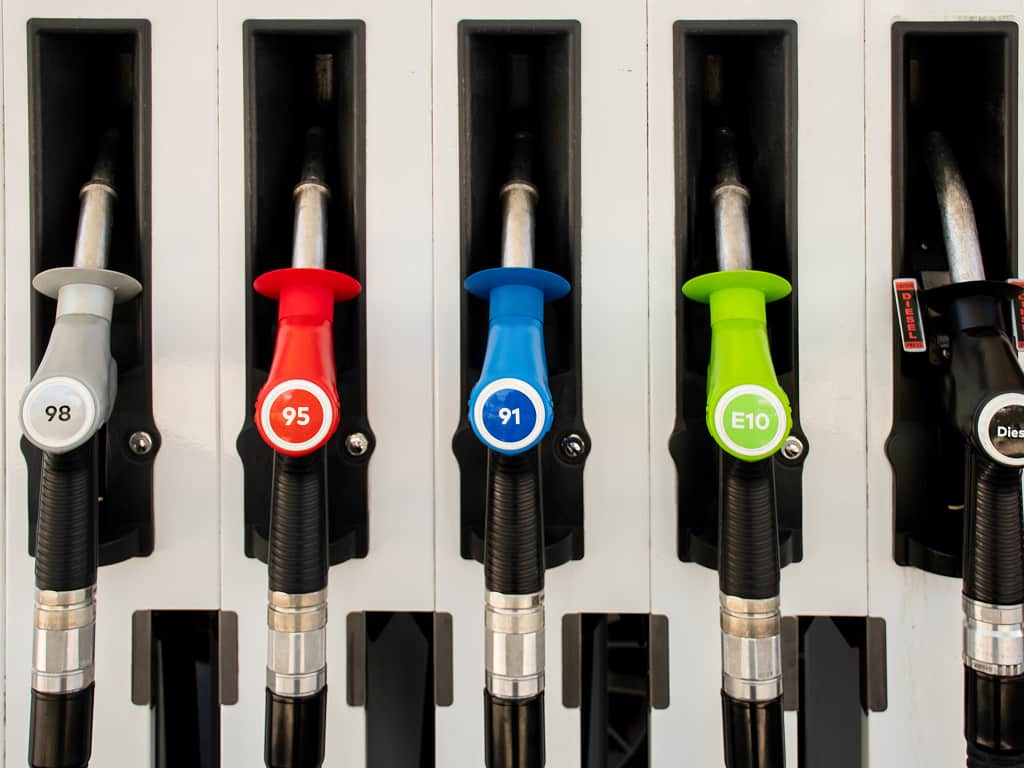
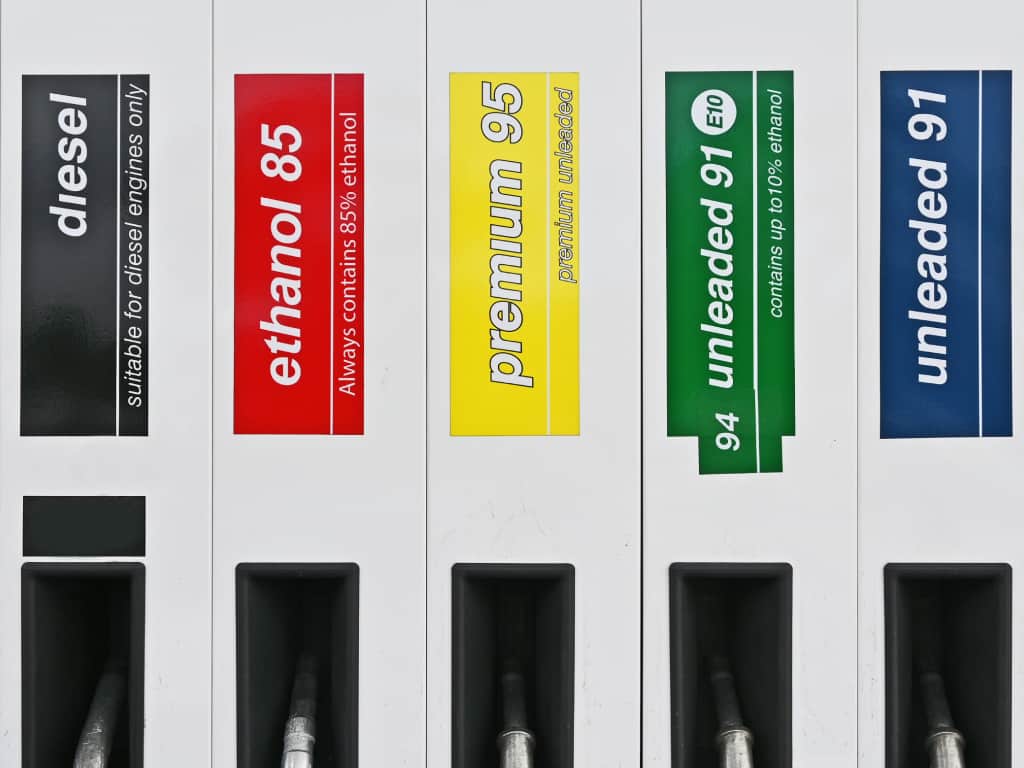
What fuel types can I select for my outlet?
You can select all fuel types available at your outlet, including:
- U91: Unleaded 91
- P95: Premium Unleaded 95
- P98: Premium Unleaded 98
- DSL: Diesel
- PDSL: Premium Diesel
- E10: Ethanol 10
- E85: Ethanol 85
- B20: Biodiesel 20
- LPG: Liquefied Petroleum Gas
- LNG: Liquefied Natural Gas
- CNG: Compressed Natural Gas
At least one fuel type must be selected before you can save changes.
How do I set opening hours for my outlet?
For each day of the week, you can:
- enter opening and closing times, or
- select ‘Open 24 hours’
You must set opening hours for all applicable days before saving.
What rules apply to opening hours?
When entering opening hours:
- opening time must be earlier than closing time
- times must be entered in 30-minute intervals, such as 3pm or 3.30pm
- each day must have valid hours or be marked as closed or open 24 hours
These checks help keep public information accurate.
Why am I seeing errors about opening or working hours?
You may see errors if:
- opening hours are missing
- opening time is later than closing time
- times are not in 30-minute intervals
Review the highlighted fields and correct the values before saving.
Can I leave some days blank?
No. Each day must either:
- have valid opening and closing times, or
- be marked as ‘Open 24 hours’, or
- be marked as closed
Incomplete days can’t be saved.
When do outlet changes take effect?
Changes made manually are applied immediately after selecting ‘Save changes’.
For CSV updates, changes may take a few moments to apply and you’ll receive an email once processing is complete.
Fuel price reporting
How do I submit fuel prices?
Fuel prices are submitted through the price reporting portal. You can report prices manually or automatically, depending on your setup.
Can I submit fuel prices automatically?
Yes. Automated price reporting requires:
- an API key
- whitelisted IP addresses
This allows your system to securely send price data.
API keys and system connections
What is an API key?
An API key is a secure credential your system uses to send fuel price data to Service Victoria.
Do I need to generate a new API key if I already have one?
Only generate a new API key if your connection details change or your existing key stops working. If everything is working, you can keep using your current key.
What happens when I generate a new API key?
Generating a new API key:
- disables your existing API key immediately
- may briefly interrupt fuel price reporting
Your systems must be updated to use the new key.
Can I choose not to generate a new API key?
Yes. When prompted, select ‘No, don’t generate new API key’ to keep your current key active.
IP address whitelisting
What is IP address whitelisting?
IP address whitelisting limits API access so only approved systems can submit fuel prices.
How do I whitelist IP addresses?
To whitelist up to 10 IP addresses.
To do this:
- Sign in to ‘Manage your fuel business’.
- Select ‘Whitelist IP addresses’.
- Choose a single IP or a CIDR block.
- Enter the details.
- Select ‘Add IP to whitelist’.
The IP will then be added to your whitelist.
How many IP addresses can I whitelist?
You can whitelist up to 10 IP addresses.
To add more, remove an existing IP first.
Why can’t I add an IP address?
This may happen if:
- the IP address format is invalid
- required information is missing
- you’ve reached the 10-IP limit
You’ll receive an on-screen message with information on how to resolve the issue.
Can I edit or remove IP addresses later?
Yes. You can edit or delete whitelisted IP addresses at any time.
Removing an IP stops systems using it from sending data.
Help and info
Fuel stations need to update us when their fuel prices change. Victorians can now use the Service Victoria app to view current pricing and availability in their area.