
On this page

How to manage information about your workers in WWC Connect
Access your ‘Worker List’ to add workers, update their details and notify when you start or stop engaging them in child-related work.
Manage workers one-by-one or use ‘Bulk actions’ to add or update many workers at once.
Before you start
You must complete your WWC Connect setup before you can notify about your workers.
Once your setup is complete, you’ll be taken to the ‘Worker List’.
Before adding an worker, make sure you have their:
- worker information
- clearance details
- contact information
- child-related work start date
Only workers with a valid clearance can be added.
1. Access your ‘Worker List’
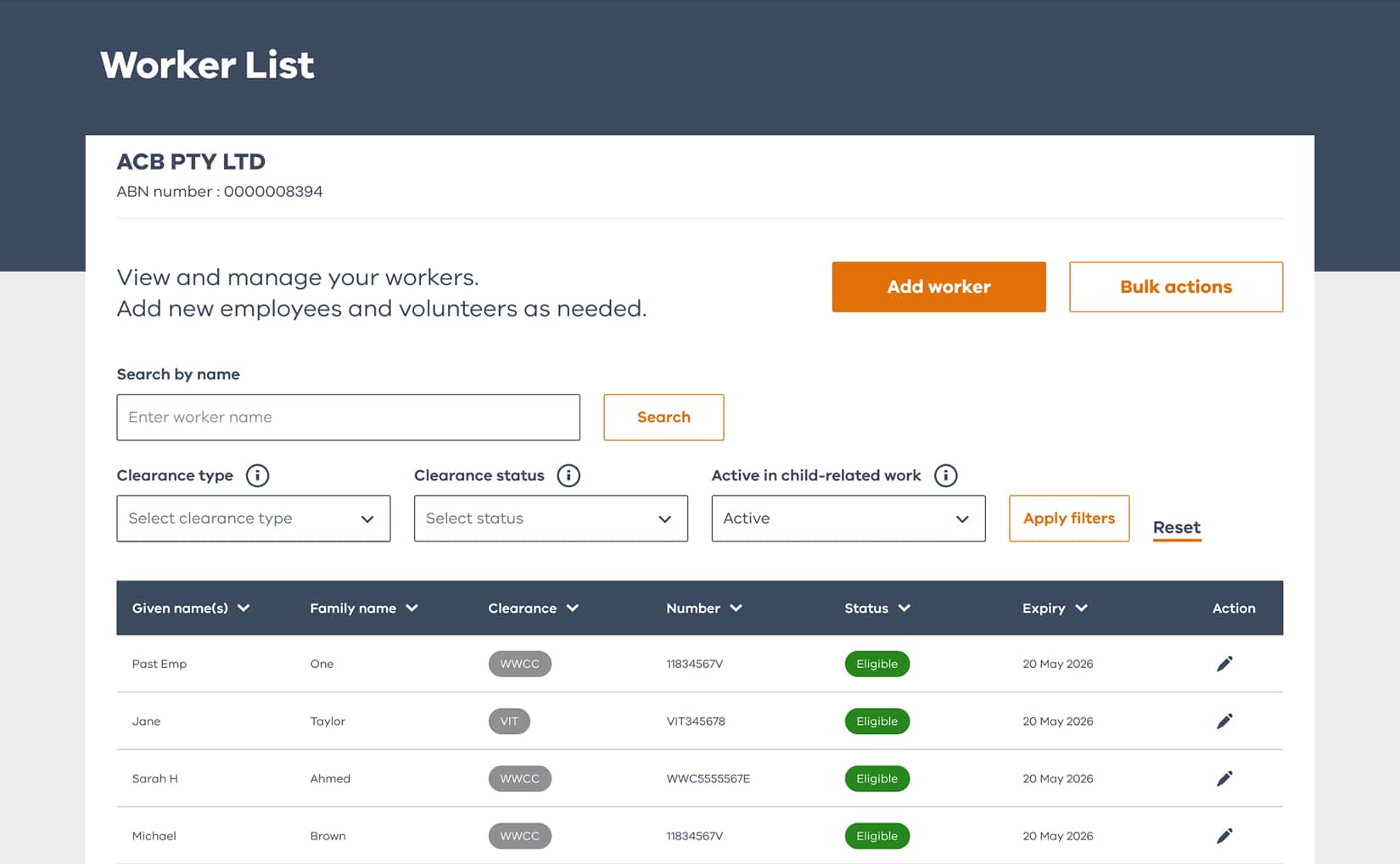
Your ‘Worker List’ shows the workers your organisation has already reported.
Your ‘Worker List’ shows the workers your organisation has already reported.
From this screen, you can:
- add a worker
- search workers already recorded
- open a worker profile
- view ‘Active’ and ‘Inactive’ workers
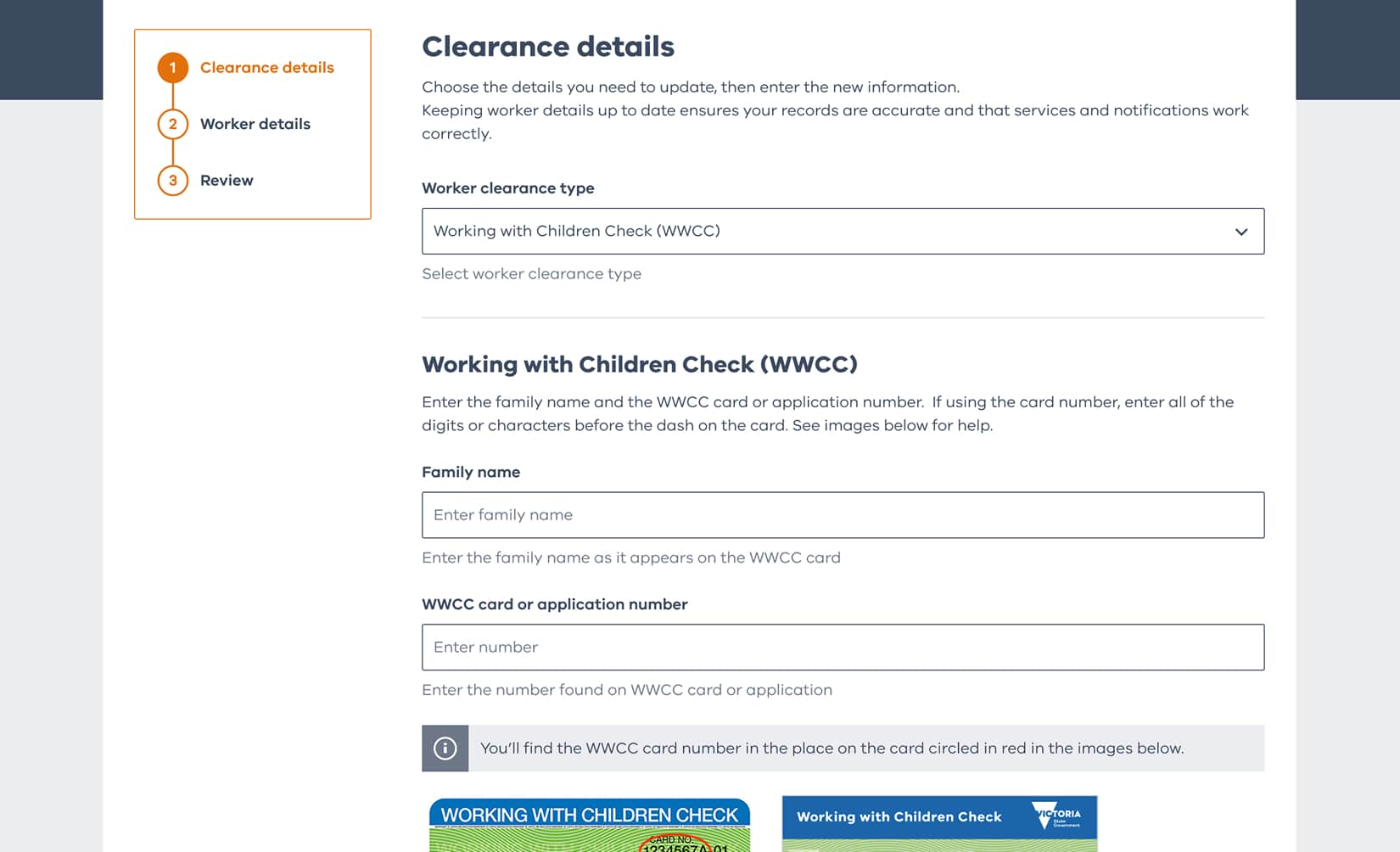
2.1 Add a worker — select and validate clearance
From the ‘Worker List’ select ‘Add worker’. First, select the clearance type, then enter the worker’s clearance details. If a worker holds an eligible clearance, you can proceed to adding their child-related work information.
You can’t continue if:
- the clearance is not valid
- the details don’t match a clearance
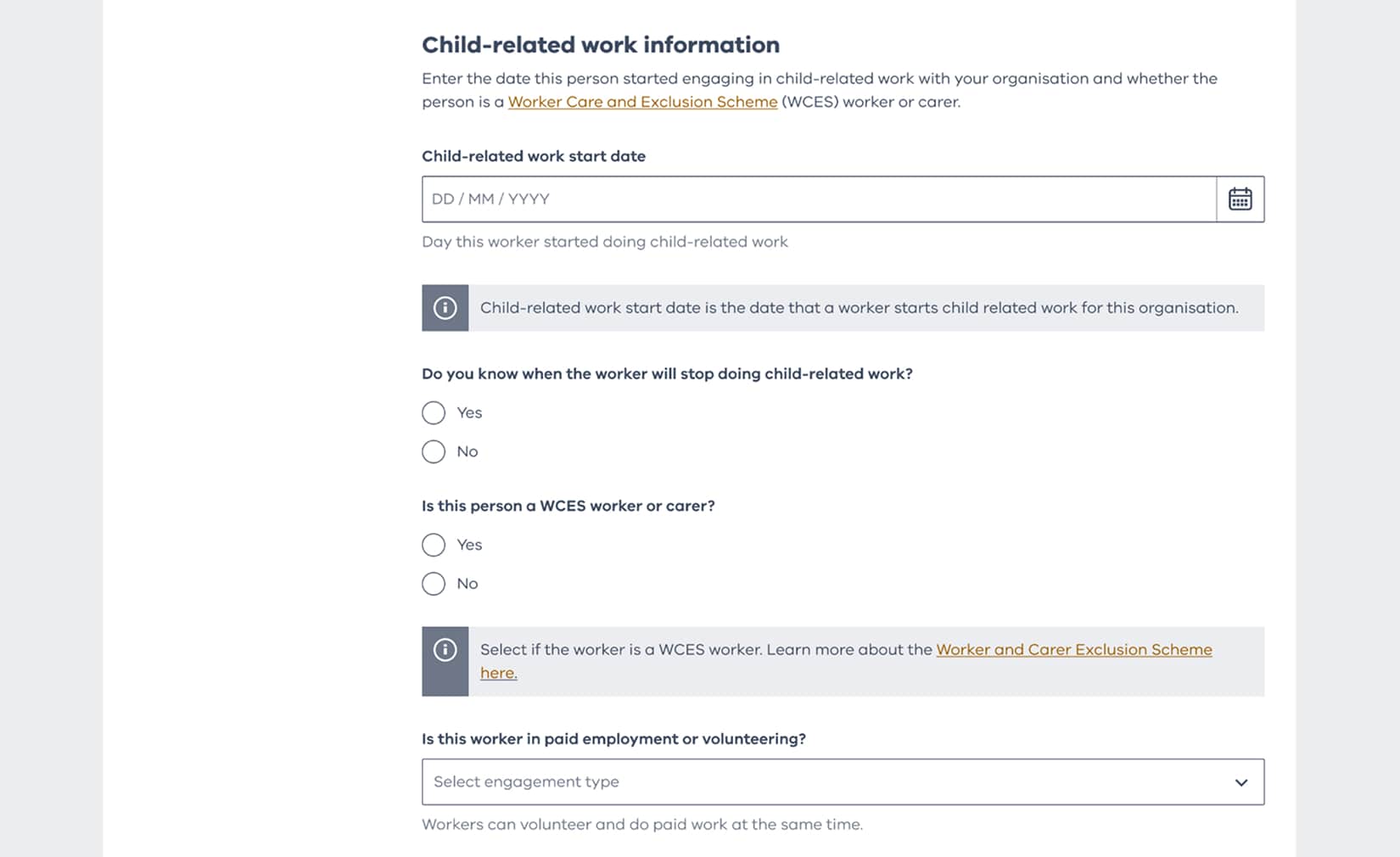
2.2. Add a worker — enter worker details
Once a worker’s clearance details are validated, enter additional details including:
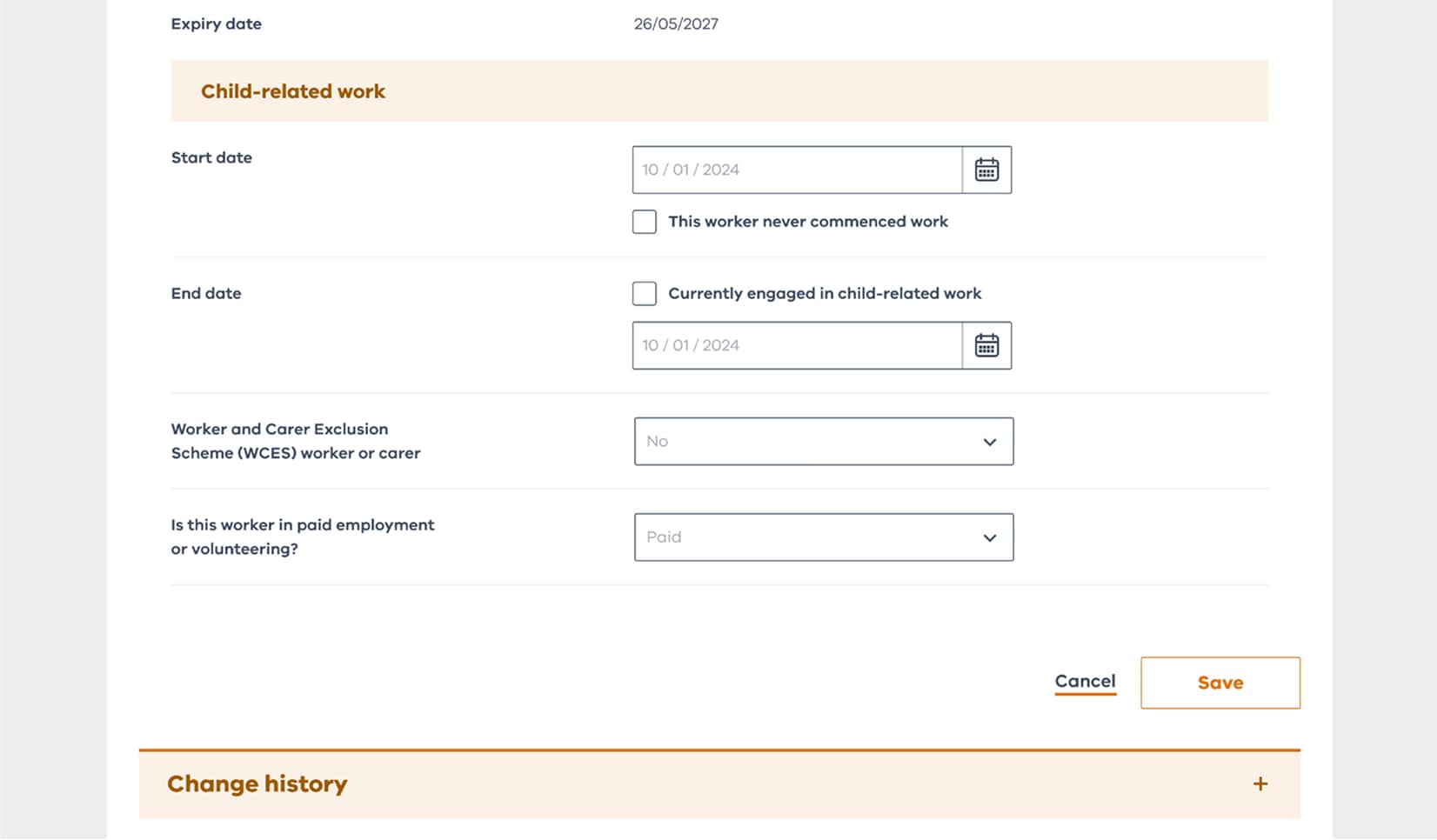
- child-related work start date (and end date, if known)
- worker contact information
- whether they are an employee or volunteer
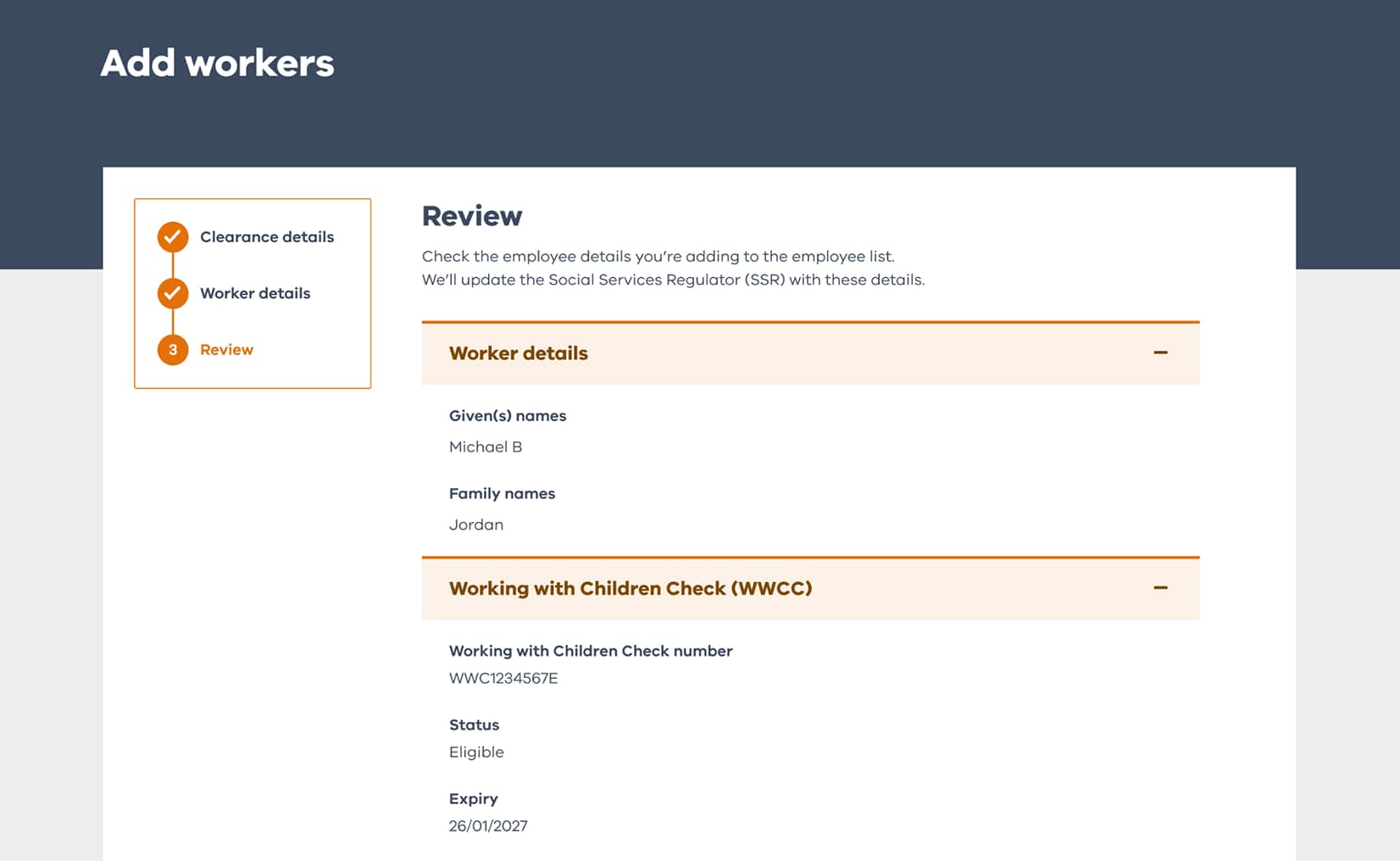
3. Review and submit
Review the worker’s information before submitting it.
Check that their:
- clearance details match
- child-related active start date/end date is correct
- personal and contact information is correct
Select ‘Submit’ to add the worker.
The worker will appear in the ‘Active’ section of your worker list.
You can view worker details via the worker profile and view submitted changes in their history.
4. Record when child-related work ends
You can update a worker’s information, including their child-related work start date or end date via the ‘Edit’ button on the worker profile.
Labour hire agencies also have an obligation to record:
- the name and contact details of any person or entity they place a worker with to do child-related work
- the dates and number of hours the worker engaged in child-related work during their placements.
When you cease to engage a worker in child-related work, you must add the end date to WWC Connect.
After an end date is submitted:
- the worker’s status will change to ‘Inactive’
- their record will move to the ‘Inactive’ section of the ‘Worker List’
- their reporting history will remain available
5. Add or update in bulk
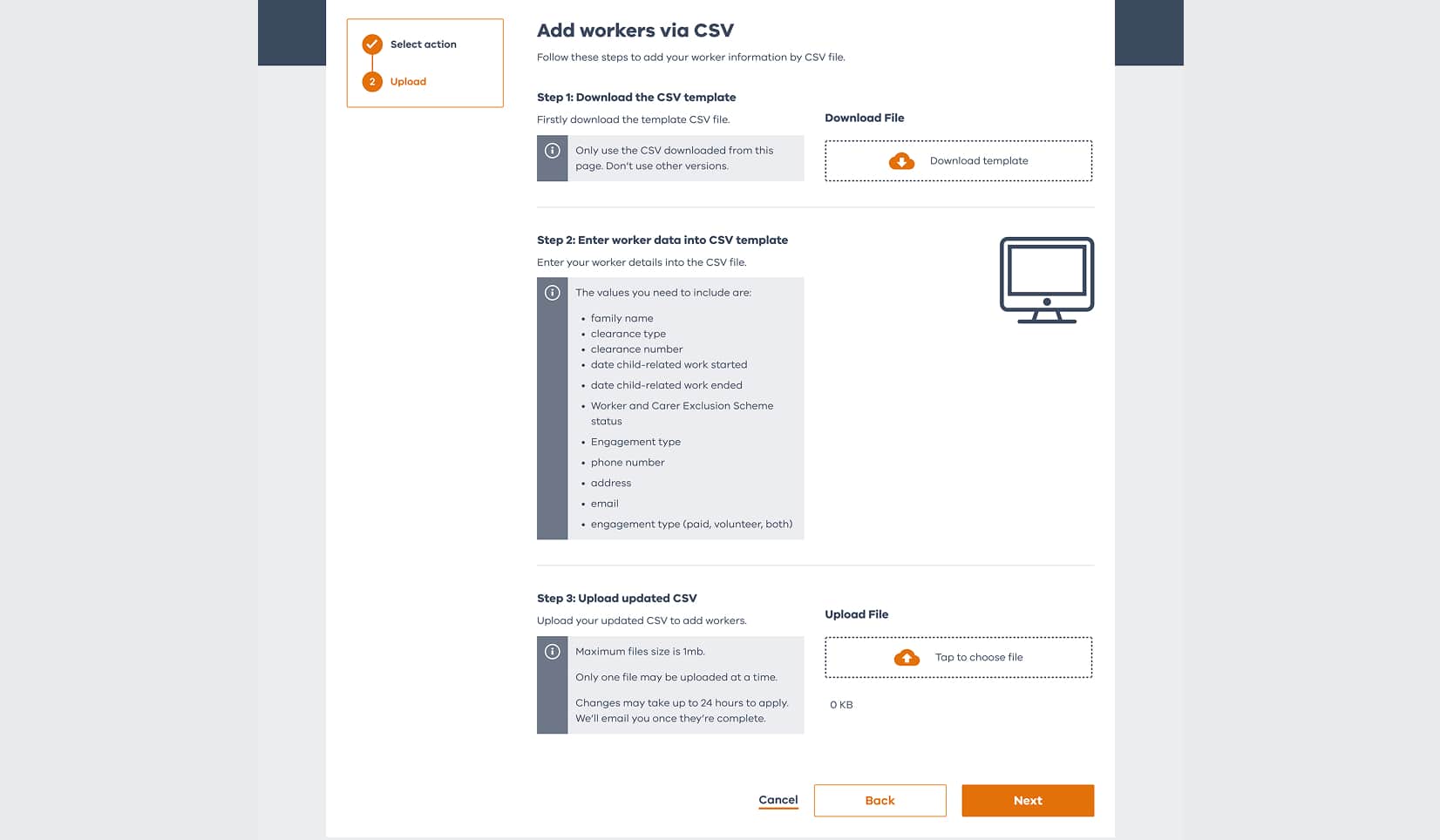
You can use a template to add or update multiple workers at the same time.
From the ‘Worker List’ choose the bulk option and download the CSV template.
Use the template to:
- add new workers
- update existing worker information
- update child-related work start dates
- add child-related work end dates
Be sure to follow the correct formatting example in the template for each column header. If any information can’t be accepted, you’ll need to correct it before those worker records can be submitted.
Upload the completed template and review before submitting.
Once the file is submitted, new workers and accepted updates will appear in the ‘Worker List’.
Watch the video
Watch our step-by-step guide to learn how to register your workers.
Get help with registering and reporting
Have questions about registering and reporting? Choose a category to learn more.



FAQ
Get answers to your questions about Working with Children Connect and more.